
How-to · Robot Vacuums
How to Use a Robot Vacuum
 By Laura Benning · Updated · How we pick
To use a robot vacuum, place the dock against a wall and plug it in, let the robot charge, then start a run from the app or the button on the robot. The robot maps the home as it cleans, returns to the dock to recharge, and empties its bin into the dock on self-emptying models. Empty the bin or dock bag and clear the brushes after runs.
Place the dock and charge the robot
Put the dock on a flat floor against a wall with clear space in front of it, plug it in, and set the robot on the dock to charge. Leave the robot on the dock until the battery is full before the first run, so it can finish mapping the home without stopping. Keep the dock plugged in between runs so the robot can return, recharge and empty itself on models with a self-emptying base.
Connect the app and map the home
Install the maker's app on your phone and follow its prompts to connect the robot to Wi-Fi and review the map it builds. On the first run, let the robot travel through each room so the map covers the whole home. Then mark no-go zones around pet bowls, cords and areas you want skipped, and set a schedule if you want regular runs.
Start a cleaning run
Press the clean button on the robot or start a run in the app, and pick a mode that fits the mess: a whole-home run for daily dirt, a spot clean for one area, or an edge clean along walls and baseboards. On a vacuum-and-mop model, fill the water tank and fit the mop pad before you start. Stay out of the robot's path while it works so it can follow its map.
Empty the bin or the dock
When the run ends, lift out the dust bin and empty it over a trash can, tapping it until the dust falls out. On a model with a self-emptying dock, the dock's bag or bin holds the dirt instead, so check it when the app or the dock light asks and swap a full bag for the maker's own type. A full bin or bag leaves dirt behind on the next run.
Clean the brushes, sensors and filter
Switch the robot off and turn it over on a towel. Pull hair and string off the main brush and the side brushes, then wipe the cliff sensors under the robot, the bumper and the charging contacts with a dry, soft cloth. Tap the filter clean over the trash, and rinse it only if the manual says it is washable. Let it dry fully before it goes back in.
What you need
As an Amazon Associate I earn from qualifying purchases. Product details come from each Amazon listing; we do not test products in person.
-
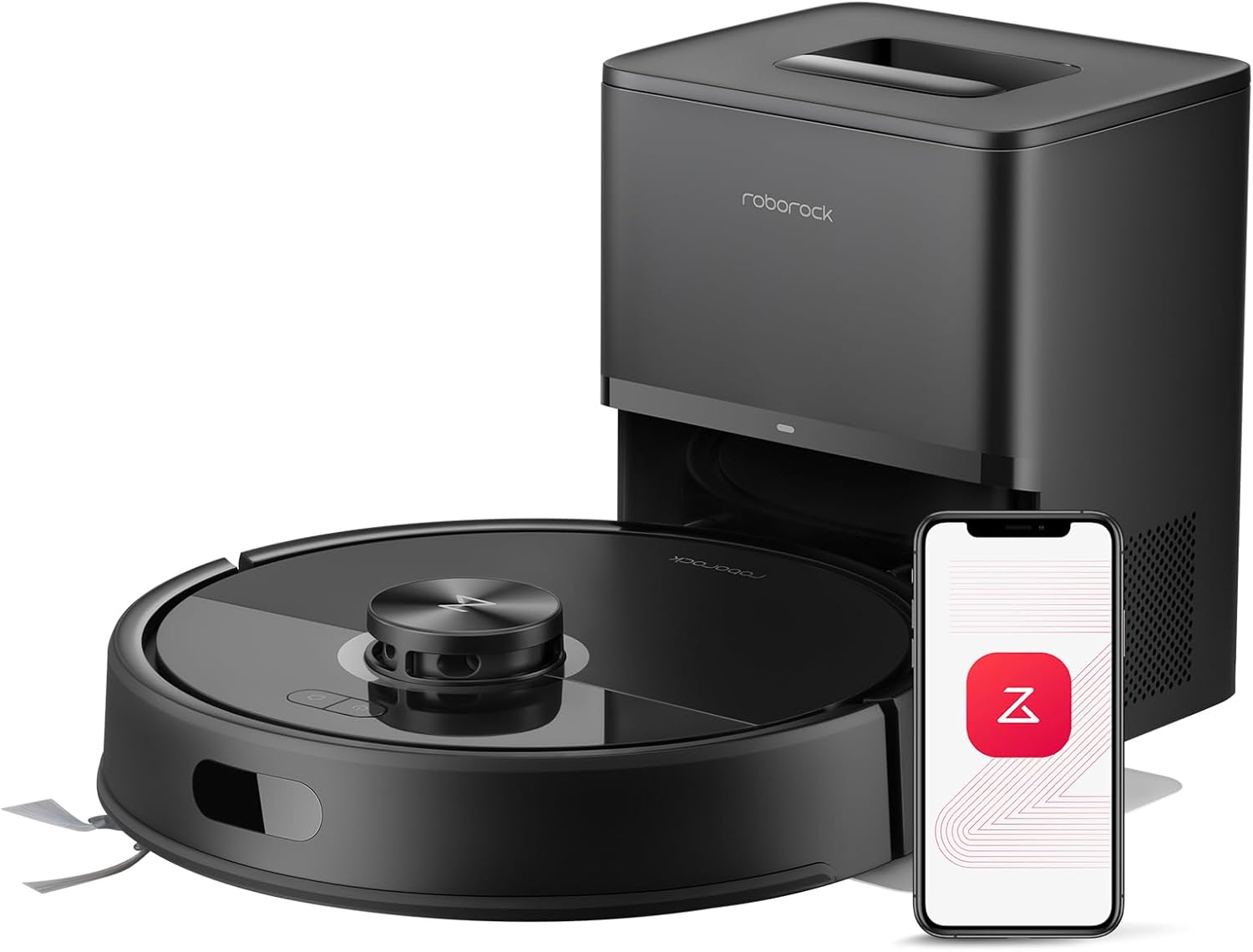
roborock Q7 M5+ Robot Vacuum and Mop
Its PreciSense LiDAR maps the home for planned cleaning paths, and the self-empty dock holds dirt in a 2.7L sealed dust bag for up to 7 to 9 weeks.
View on Amazon -
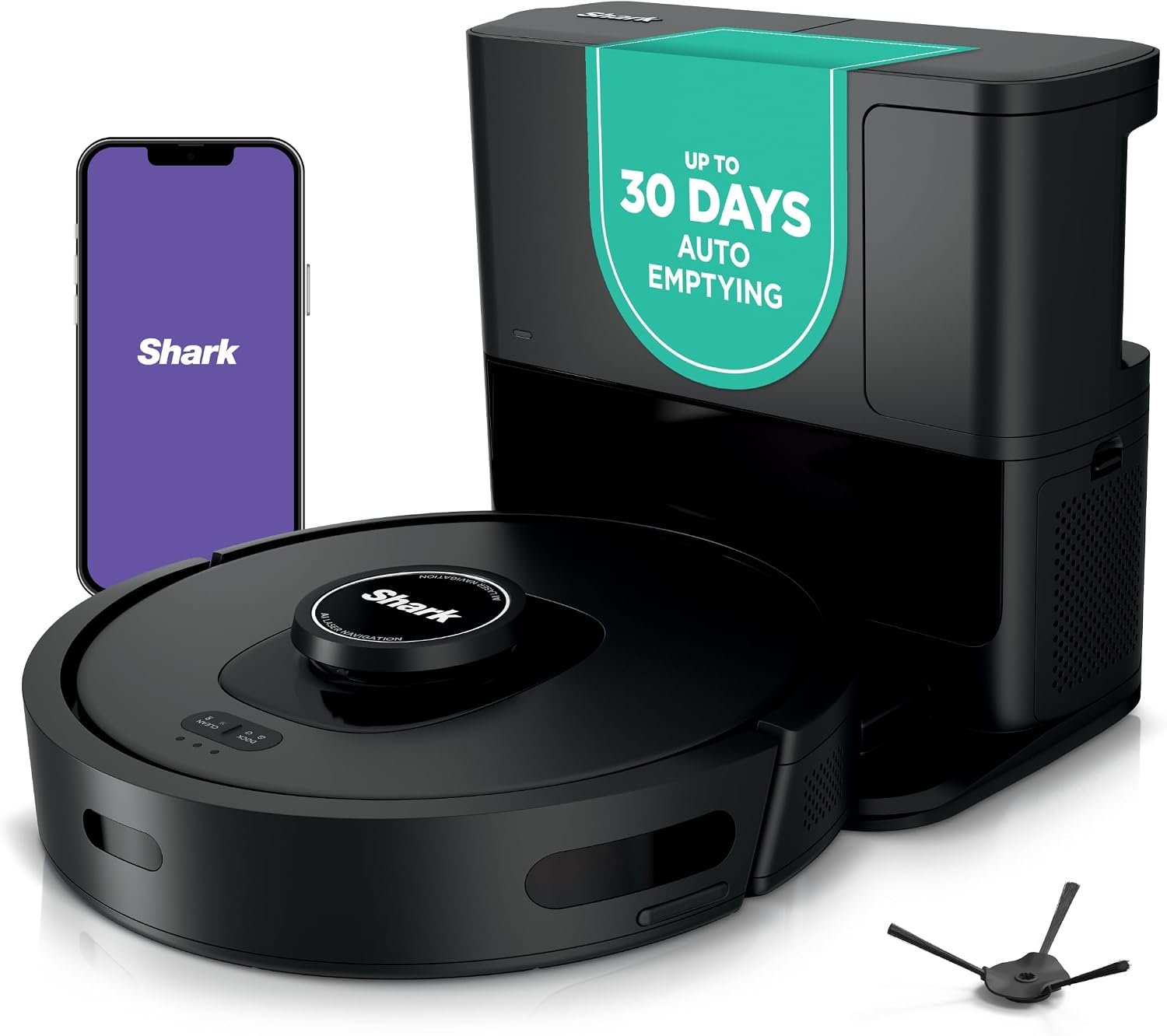
Shark AV2501S AI Ultra Robot Vacuum
Its bagless HEPA self-empty base holds up to 30 days of dirt and debris, and its 360° LiDAR vision maps the home.
View on Amazon -

Bagotte Robot Vacuum and Mop Combo: 8000Pa
Its 360° LiDAR maps the home and plans cleaning routes, and the app lets you mark virtual no-go zones.
View on Amazon -

iMartine Robot Vacuum and Mop
Its 2-in-1 dustbin and water tank let it vacuum and mop in one run, with Auto, Spot, Edge and Zig-zag modes in the app.
View on Amazon
These come from our ranked list Best Robot Vacuum, which compares them spec by spec.
FAQ
Do I need Wi-Fi to use a robot vacuum?
No. The robot cleans from the button on top without Wi-Fi, but the app needs a connection for schedules, maps and no-go zones. The roborock and Bagotte apps connect on 2.4GHz Wi-Fi only.
How do I keep a robot vacuum from getting stuck?
Clear cords, small items and loose rugs from the floor before a run, and set no-go zones around pet bowls and fragile items in the app. The Bagotte app marks virtual no-go zones, and the robot turns away from marked areas.
Why does my robot vacuum return to the dock mid-clean?
It goes back to recharge when the battery runs low, and models with recharge and resume pick up where they left off. The Shark returns to the dock, recharges, and can resume cleaning.
Can a robot vacuum mop and vacuum at the same time?
Yes, on models with a mop module. The roborock vacuums and mops in one go with three water flow settings, and the iMartine vacuums and mops at once from its 2-in-1 dustbin and water tank.


