How-to · Mesh Wi-Fi Systems
What Is a Mesh Wi-Fi System
 By Laura Benning · Updated · How we pick
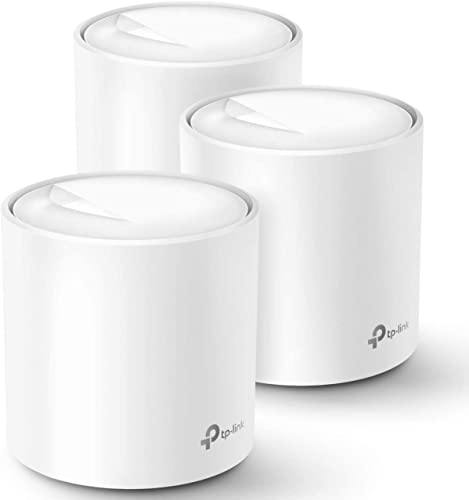
A mesh Wi-Fi system is a set of small units that work together as a home network, with a main unit wired to the modem and extra units placed around the home. The units talk to each other and hand your phone or laptop from unit to unit as you move, so the network name stays the same in every room.
What the units do
The main unit connects to the modem and runs the network. Extra units plug in around the home and link back to the main unit over Wi-Fi. Every unit sends out the same network name, so a phone or laptop joins the network instead of joining a box in a corner. When you walk to another room, the network moves the device to the closest unit without dropping the connection.
How roaming works
Your phone or laptop stays on the same network name as you move, and the system moves the device to the closest unit. The handover happens in the background, so a video call or a stream keeps going while you walk between rooms. Walls, floors and distance still weaken the link, so a unit placed too far from the next unit leaves a weak spot between them.
Where to place the units
Start with the main unit beside the modem, out in the open and away from thick walls and metal shelves. Place each extra unit about halfway between the main unit and the area it should cover, with a clear path for the signal. Keep units off the floor and out of closed cupboards, and plug them straight into a wall socket. If a room still has a weak signal, move the nearest unit closer to the main unit and check again.
What to check before you buy
Match the pack to the home: check the maker's coverage figure for the pack and the number of devices it lists, and compare that with the rooms and devices in the home. Check the Wi-Fi standard on the box, since a newer standard needs devices that support it, and check the ports for a wired connection to a desktop or a game console. Read the warranty term on the listing so you know how long the maker covers the pack.
How to set the system up
Plug the main unit into the modem and into power, then open the maker's app and follow the on-screen steps to name the network and set a password. Run a quick check from the far rooms, then move any unit that shows a weak link closer to the main unit.
What you need
As an Amazon Associate I earn from qualifying purchases. Product details come from each Amazon listing; we do not test products in person.
-

TP-Link Deco 7 Pro Tri-Band BE14000 Wi-Fi
Its 3-pack is rated for up to 8,100 sq ft by the maker for over 200 devices, with Wi-Fi 7, AI-Roaming and 10 Gbps ports.
View on Amazon -

NETGEAR Orbi 870 Series WiFi 7 Mesh
Its router plus 2 satellites are rated for up to 9,000 sq ft by the maker for up to 150 devices, with WiFi 7 speeds up to 21 Gbps.
View on Amazon -

Amazon eero Pro 7 tri-band mesh Wi-Fi
Its 3-pack is rated for up to 6,000 sq ft by the maker for 600+ devices, with Wi-Fi 7 and support for internet plans up to 5 Gbps.
View on Amazon -

Tenda AX3000 WiFi 6 Mesh System Nova
Its 3-pack is rated for up to 7,000 sq ft by the maker for over 160 devices, with dual-band WiFi 6 and speeds up to 2976 Mbps.
View on Amazon
These come from our ranked list Best Mesh WiFi System, which compares them spec by spec.
FAQ
Do mesh Wi-Fi units replace the modem?
No. The main unit plugs into the modem, and the modem still brings the internet into the home. Mesh units spread that connection around the home; they do not replace the modem or the internet plan.
Can I add more units later?
Yes, if the new unit belongs to the same mesh system. Place it where the signal needs a boost and follow the maker's setup steps until the unit has joined the network.
Is mesh Wi-Fi the same as a Wi-Fi extender?
No. An extender repeats the signal from the router and often creates another network name, while mesh units share a network name and hand devices between units. That handover is what keeps the network name the same as you move around the home.